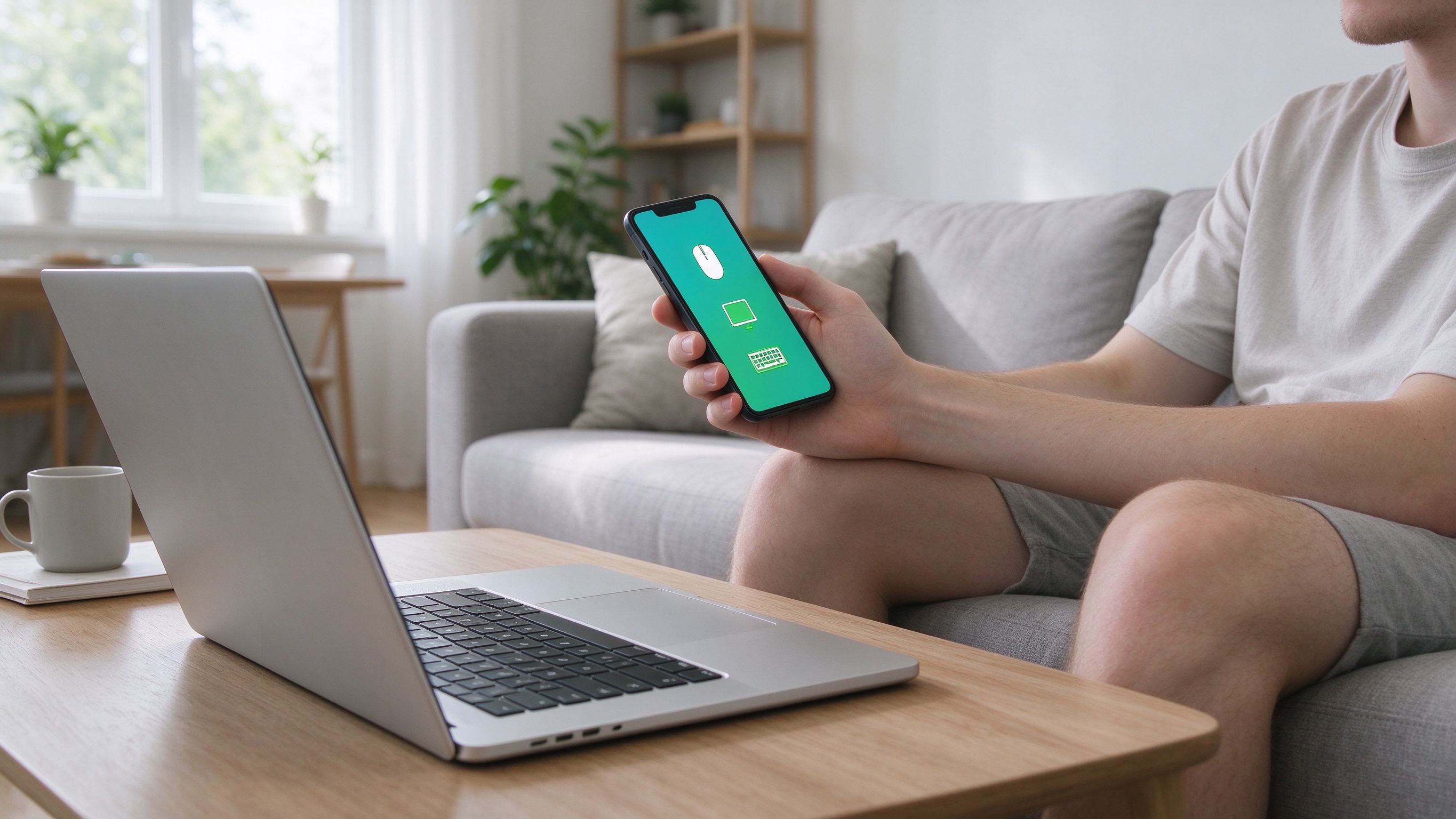
Your phone is already in your hand, and the computer you need to control is across the room. Instead of getting up or buying a separate wireless mouse and keyboard, you can turn your phone into both — in about a minute.
Why use your phone as a mouse and keyboard
A phone gives you something a dedicated remote control tool doesn't need to be: always with you, always charged, and already in your hand.
- No extra hardware — your phone is the mouse, the trackpad and the keyboard.
- Works from across the room — type and click while you stay where you are.
- Multi-touch gestures — swipe, scroll and pinch just like a native trackpad.
- Nothing to buy — it's a free feature over your own network.
What you need
To control your PC or Mac from your phone, you only need two things:
- The remote app on your phone (iOS or Android)
- The receiver app on your computer (Windows or macOS)
Both sides need to be on the same network. That's the whole setup.
How to set it up
Follow these three steps and you'll be controlling your computer from your phone in under a minute.
1. Install the receiver on your computer
Download the AirBee Deck receiver for Windows or macOS and run it. It waits quietly in the background — there's nothing else to configure.
2. Install the app on your phone
Open the app store on your phone and install AirBee Deck. Once it's open, it will look for devices on your network automatically.
3. Connect
Pick your computer from the device list, and your phone becomes its remote. Tap to click, swipe to move the cursor, and use the keyboard for anything that needs typing.
What you can control
Once connected, your phone replaces the mouse, trackpad and keyboard at once:
- Move the cursor and click anywhere on screen
- Scroll and multi-touch gestures, like a native trackpad
- Type into any text field — search boxes, forms, terminals
- Switch between apps and windows without reaching for your desk
Your input stays on your network
AirBee Deck is designed to be private by design. Your keystrokes and clicks stay on your own network in local mode — nothing is routed to a cloud server.
Your input stays on your own network. Nothing is routed to the cloud.
When a direct connection isn't possible, traffic is end-to-end encrypted through a secure relay, so you can still reach your machine from anywhere.
Tips for getting the most out of it
- Keep both devices on the same Wi-Fi for the lowest latency in local mode.
- Use voice typing to save your thumbs on long messages.
- Copy on your phone, paste on your PC with cross-device clipboard.
- Pair your phone with multiple machines and switch in a tap.